







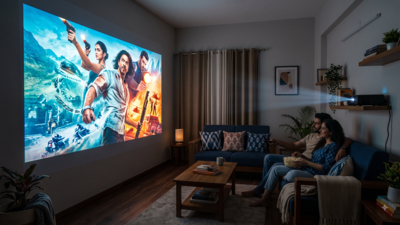
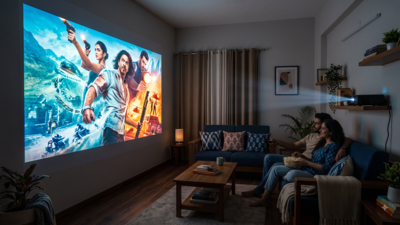
Many people spend hours watching movies, shows and sports on their TV, but only a few make the most of their screen’s picture quality. The good news is that users do not need expensive equipment or professional calibration to improve their TV picture. A few simple changes to picture mode, brightness, motion settings and sharpness can make movies, shows and sports look more natural and detailed. Here are some of the most important TV settings to change for better picture quality.
Start with the right picture mode
The first setting to check is Picture Mode. Most TVs offer options such as Standard, Vivid, Dynamic, Sports, Movie, Cinema and Filmmaker Mode. These modes generally aim for a more accurate and natural-looking image. Filmmaker Mode, where available, also reduces extra picture processing. Vivid and Dynamic modes may look eye-catching, but they can push brightness and colours too far for regular viewing.
Turn off motion smoothing for movies
If movies look unusually smooth, almost like a soap opera or live television, motion smoothing could be the reason. This feature adds extra frames to make movement appear smoother.Motion processing can be useful in some situations, but many viewers prefer to switch it off or lower it when watching films. It might be called MotionFlow or Picture Clarity, depending on the brand of your TV.
Carefully adjust brightness and contrast
The brightness and contrast can make a big difference to what you see on screen. Contrast affects highlights and bright areas, while brightness or black level setting affects how much detail is visible in dark scenes.A good approach is to use a familiar movie or show with both dark and bright scenes.
Don’t increase sharpness too much
More sharpness does not always mean more detail in the picture quality. Instead, it can add artificial outlines around objects and make the image look unnatural. Hence, it is recommended to lower the sharpness setting. Having said that the best level can vary by TV and personal preference.
Check energy-saving and automatic brightness
Some TVs automatically adjust screen brightness depending on the room lighting or energy-saving settings. While these features can help in reducing power consumption, they may also make the picture look dim.If the screen appears inconsistent, checking features such as ambient light sensors, adaptive brightness or energy-saving modes may help. Available settings and names differ between TV brands and models.